
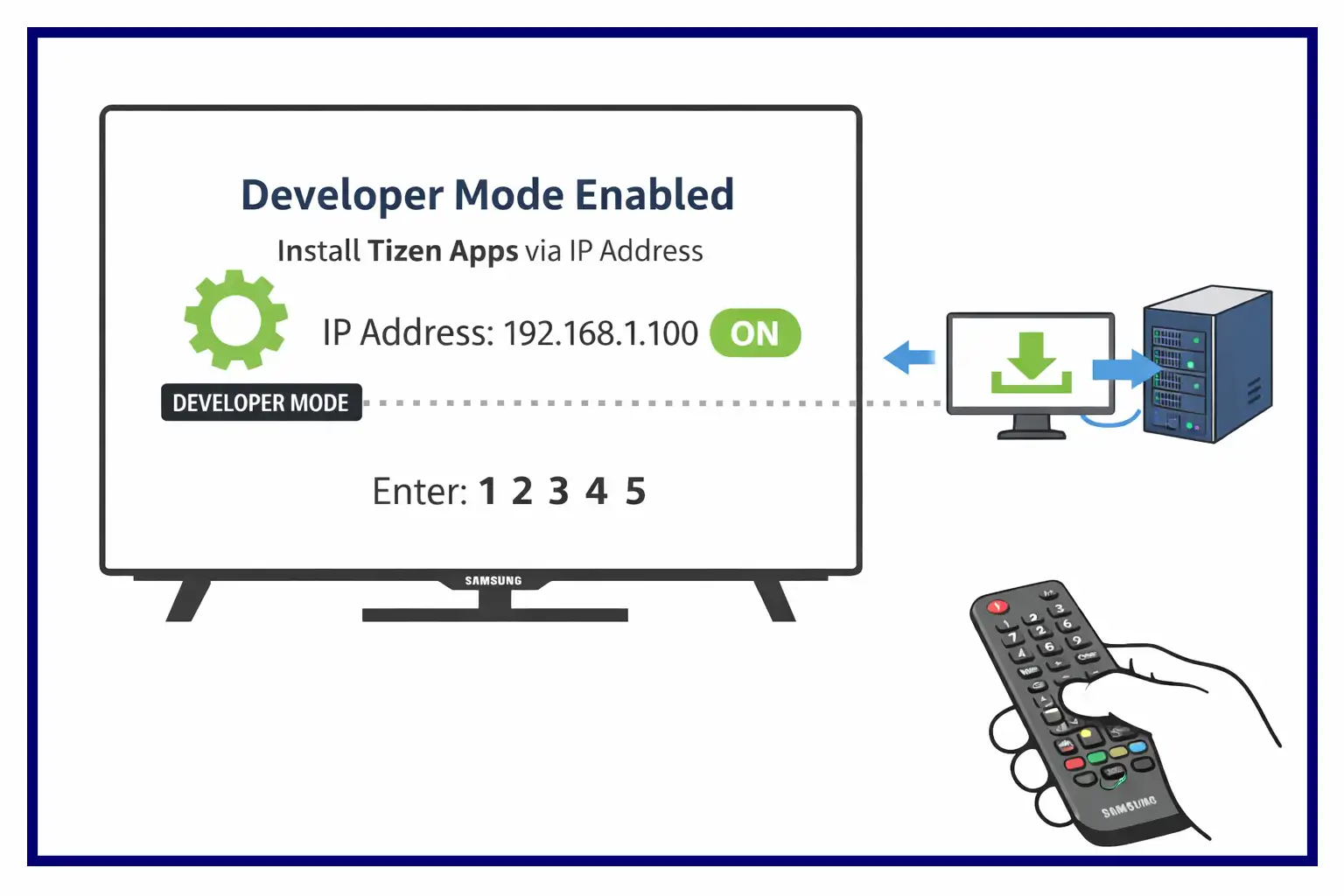
Samsung Smart TVs run on the Tizen operating system, which uses its own architecture and does not support generic third-party applications. In simple terms, for an app to work on Tizen, it must be developed specifically for that platform.
Creating such an application requires familiarity with Tizen’s features and development tools. Samsung provides a Tizen OS emulator that allows developers to test and debug their apps. Once an application passes review, it can be published in the Samsung App Store, where users are able to install it on their TVs.
Android applications in APK format cannot be installed on Samsung Smart TVs, as these devices do not support Android or APK files in any form.
In practice, installing third-party applications on a TV is largely unnecessary. It is difficult to imagine a compelling use case beyond streaming, which Samsung’s native applications already handle very well. Installing Android games is also impractical, since most of them are designed for touch input that cannot be properly replicated on a television.
While Samsung did introduce the MovingStyle tablet TV in 2025, this appears to be more of an experimental product. Even in that case, its primary purpose remains video consumption, a task that standard Samsung applications already perform perfectly.
Enabling developer mode on a Samsung TV
Applications created for Samsung Smart TVs can be tested not only in the Tizen OS emulator, but also directly on the TV itself. To do this, you need to enable Developer Mode. This mode allows you to install applications from sources other than the official app store, for example from a computer or server using a specified IP address.
It is important to understand that Developer Mode does not allow you to install Android applications. Samsung TVs run on Tizen OS, so only applications specifically developed for Tizen can be installed. Android APK files are not supported.
If you would like to enable Developer Mode, follow these steps. Open the Apps section on your TV and go to the app store screen. Navigate to Settings. When the numeric input field appears, enter the sequence 1, 2, 3, 4, 5 using the remote control. The Developer Mode menu will then open.
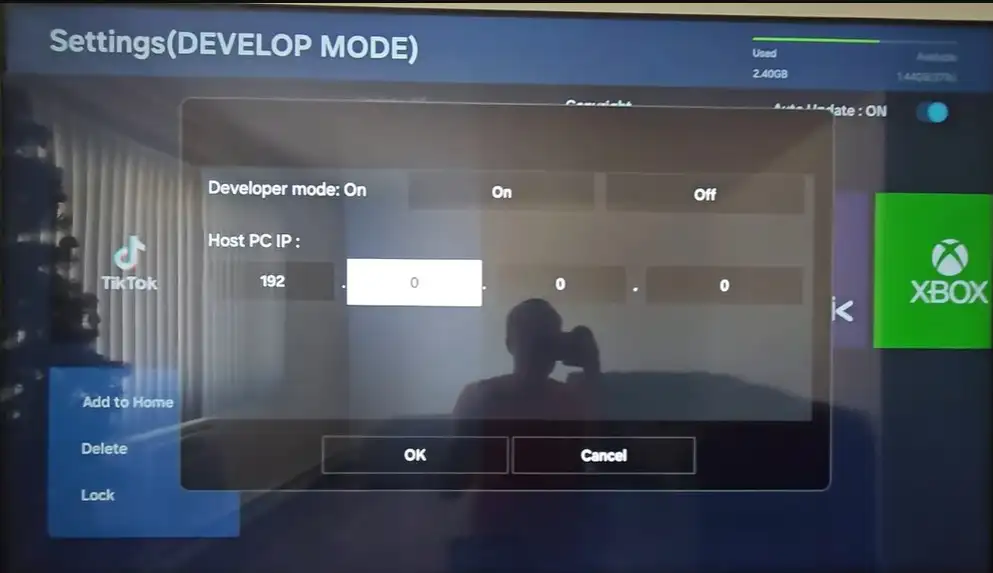
Activate Developer Mode and enter the IP address of the computer or server you want the TV to connect to. After saving the settings, turn the TV off and then back on again. Once restarted, the settings will be applied, and the TV will be ready to download and install Tizen applications from the specified IP address.
This method allows you to install third-party Tizen applications for testing or development purposes.


Personal tab doesn’t exist on the newer models 😭
Where is personal tab
when i plug the usb in the apk doesnt show up pls help