If you have just become the owner of a Samsung TV, you might be surprised to learn that it runs on the Tizen operating system rather than Android. For this reason, all TV applications are developed specifically for this platform. As a result, the app store on your Samsung smartphone and the one on your TV are completely different services. The TV store contains only apps designed for televisions, while the mobile store is much larger because it includes applications created for Android devices.
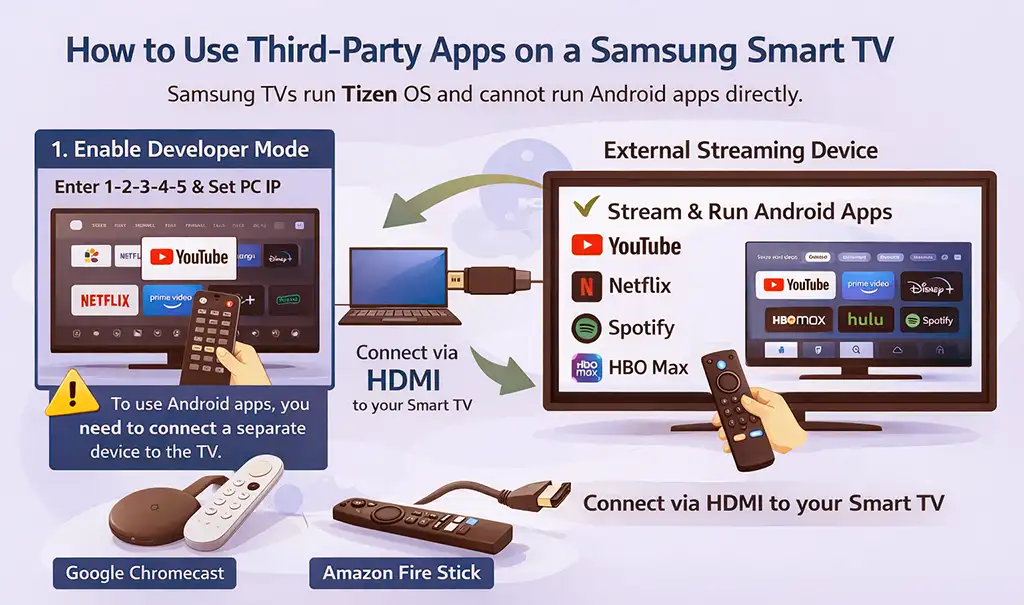
It’s important to understand that you cannot install Android applications directly on Samsung TVs — they are incompatible with Tizen OS and simply won’t work.
However, there are workarounds that allow you to use Android apps on your TV screen. In such cases, the television essentially acts only as a display or monitor, while the main processing is handled by an external device.
Using Android apps on a Samsung TV via external devices
The easiest method is to connect an external Android device to your TV via HDMI. There are dozens of such devices on the market; some of the most popular are streaming sticks like Chromecast (Google TV Streamer 4K) or Fire TV Stick. You can easily install Android apps on them and run them on the big screen.
The trade-off is that you effectively stop using the built-in Samsung app store, and control is handled through the remote of the connected device. This is slightly less convenient, but still a practical and versatile way to expand your TV’s capabilities.
Installing Third-Party Tizen Apps on Samsung TVs
If you need to install third-party Tizen applications — which is a relatively rare scenario — the only available method is through Developer Mode with app loading via a specified IP address. This approach is primarily intended for testing and development rather than everyday use.
In practice, very few developers create applications for Samsung TVs. The main reasons are the limited demand for such apps and the complexity of installation outside the official app store environment. Moreover, publishing an application in the official TV store is a demanding process: developers must first obtain a developer license, which is required to access the Tizen development tools and emulator.
If you still decide to install the app on your Samsung TV manually, you can only do so through developer mode. To do this, you will need to use a computer and the Tizen Studio program in addition to the app itself.
Step 1. Enable developer mode on your TV.
Turn on the TV, open the “Apps” section, and go to the store screen. Then, using the remote control, enter the sequence 1-2-3-4-5 (if you have a Smart remote control, you can call up the buttons by pressing the number button on the remote control). The developer menu will appear. Enable the mode and enter your computer’s IP address. Save the settings and restart the TV.
Step 2. Connect the TV to your computer.
Install the Tizen Studio developer program on your computer. Open the device manager and add the TV by specifying its IP address. After adding it, turn on the connection switch — the TV should appear in the list of connected devices.
Step 3. Allow the installation of applications.
In the device list, right-click on the TV and select the option to allow the installation of applications. This will allow you to download programs directly from your computer.
Step 4. Sign the application.
Before launching, the application must be signed with a special developer certificate (created automatically in Tizen Studio using the certificate wizard).
Step 5. Launch the application on the TV.
Select the desired project in the program and click launch. If everything is set up correctly, the application will automatically install and open on the TV.