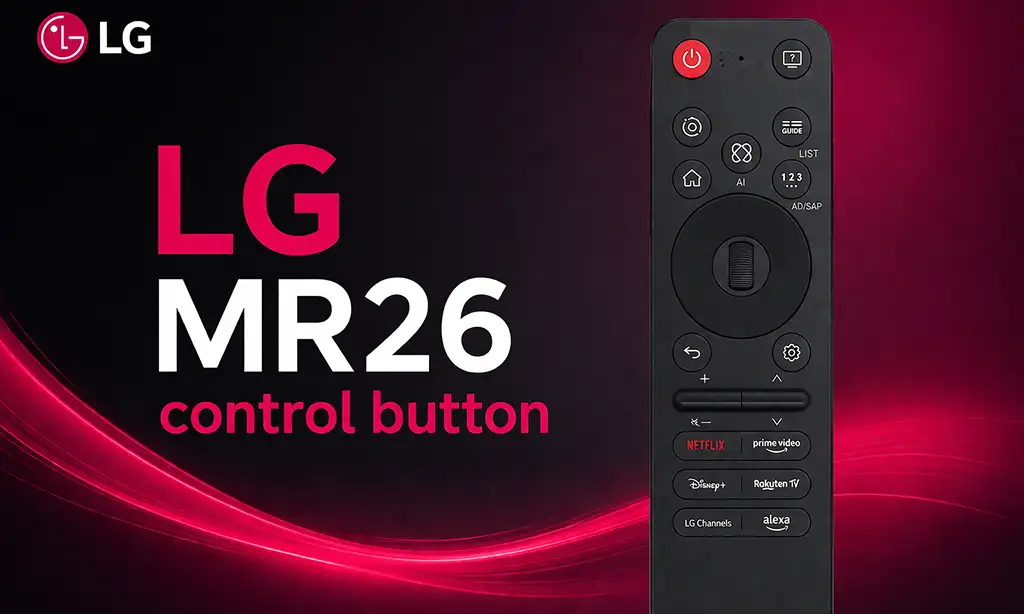
The Magic Motion remote control has undergone a number of changes, and an updated version was unveiled in 2025. The new remote was named the “AI Remote,” although it does not actually feature artificial intelligence. The number of buttons on the remote has been reduced to an absolute minimum, and most commands are intended to be activated via voice control.
The shape and functionality of the buttons are very similar to those on the Samsung remote; it is possible that a third-party company working for both companies was responsible for the remote’s design. Due to the reduction in the number of buttons, some of them now have dual functions. Users of the previous MR25 remote also noted some shortcomings, such as the lack of a mute button; this issue was resolved by adding an additional function to the volume-down button—pressing and holding the volume-down button mutes the sound.
Magic Remote MR26 control button description
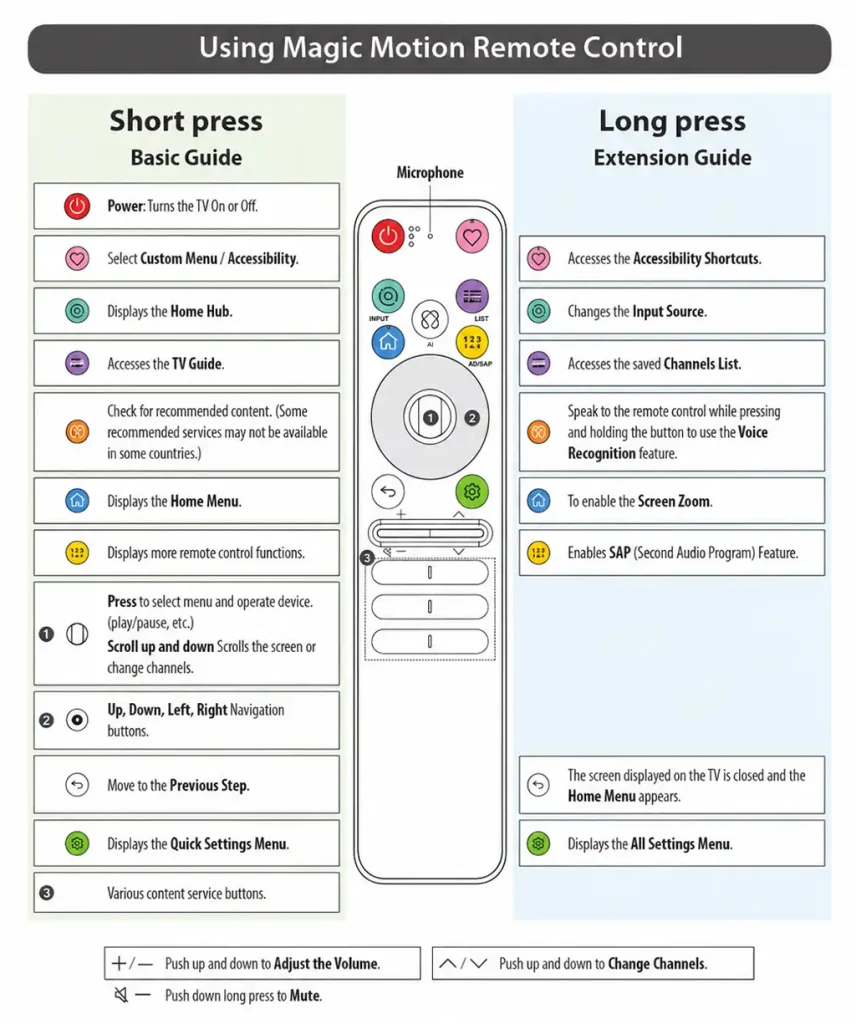
The Magic Motion Remote Control is designed for intuitive TV control using motion navigation, quick-access functions, and voice commands. Many buttons provide two functions: one when pressed briefly and another when held down.
The Power button turns the TV on or off with a short press.
The Custom Menu / Accessibility button opens the Custom Menu during normal use. When pressed and held, it opens the Accessibility Shortcuts menu, providing quick access to features such as Audio Guidance, High Contrast, Grayscale, and other accessibility options.
The Home Hub button displays the Home Hub screen, where connected devices can be viewed and controlled. When held down, it opens the Input Source menu, allowing you to switch between HDMI, USB, antenna, and other connected sources.
The TV Guide button opens the electronic program guide for browsing current and upcoming TV programs. Pressing and holding this button opens the saved Channels List, allowing quick access to stored channels.
The Recommended Content button displays suggested content and personalized recommendations. Pressing and holding this button activates Voice Recognition, allowing you to speak commands directly into the microphone for searching content, opening apps, or adjusting TV settings.
The Home button opens the main Home Menu, which provides access to apps, settings, and smart TV features. When held down, it activates the Screen Zoom function, which enlarges part of the screen for easier viewing.
The 123 / More Functions button opens additional control options such as the numeric keypad and special function keys. Pressing and holding this button enables the SAP (Second Audio Program) feature, allowing selection of alternate audio tracks when available.
The central Scroll Wheel / OK button is used for navigation and selection. Pressing it confirms selections, starts or pauses playback, and activates highlighted options. Rotating or scrolling the wheel allows movement through menus, scrolling pages, or changing channels.
The Up, Down, Left, and Right navigation buttons move through menus and interface options.
The Back button returns to the previous screen or cancels the current action. Pressing and holding it closes the current screen completely and returns directly to the Home Menu.
The Settings button opens the Quick Settings Menu with a short press, allowing fast adjustment of common settings such as picture and sound. Pressing and holding opens the All Settings Menu, where advanced system configuration options are available.
The content service shortcut buttons provide direct access to supported streaming services and apps.
The Volume + / – buttons adjust the sound level when pressed. Pressing and holding the Volume Down button activates Mute, instantly silencing the TV.
The Channel ▲ / ▼ buttons change channels when pressed. Holding these buttons scrolls quickly through available channels.
The built-in Microphone is used together with voice recognition. Hold the voice command function button and speak clearly to search for programs, control playback, launch apps, or change settings using voice commands.