

Amazon keeps a record of everything you have ordered, but finding older purchases or reviewing your total spending is not always straightforward. You can view your orders directly in your account, search for older purchases using the date filter, find archived orders, and download your complete order history as a spreadsheet.
This guide explains how to access your Amazon purchases on a computer or in the mobile app, find old orders, view individual item prices, and download and analyze your order history using Excel or Google Sheets.
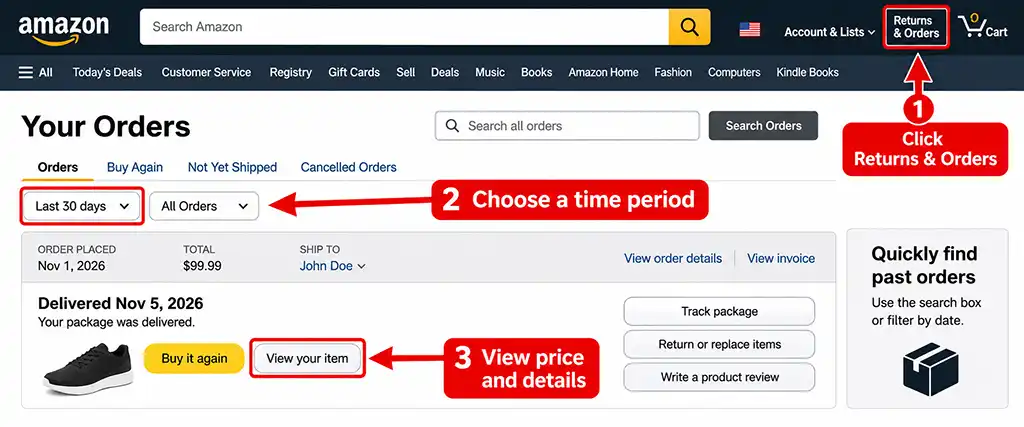
How to View Your Amazon Order History on Desktop
There are two ways to open your Amazon order history on a computer.
The quickest way
- Go to Amazon.com and sign in to your account.
- In the top-right corner, click Returns & Orders.
This takes you directly to the Your Orders page.
Through your account menu
- Go to Amazon.com and sign in to your account.
- In the top-right corner, click Accounts & Lists.
- Select Account from the menu.
- Click Orders.
Both methods open the same Your Orders page. Here, you can browse your purchases, search for specific products, and filter orders by date.
To find older purchases, use the filter next to Orders placed in and select the period you need. You can choose the last three months, a specific year, or an earlier date range.
Scroll through the results to view your orders. Each entry shows the order date, total amount, shipping address, and purchased items. If you have many orders, Amazon divides the results into multiple pages. Use the page numbers or Next button at the bottom to browse them.
You can also use the Search all orders box at the top of the page to find a specific purchase by entering its product name.
How to View Your Order History in the Amazon App
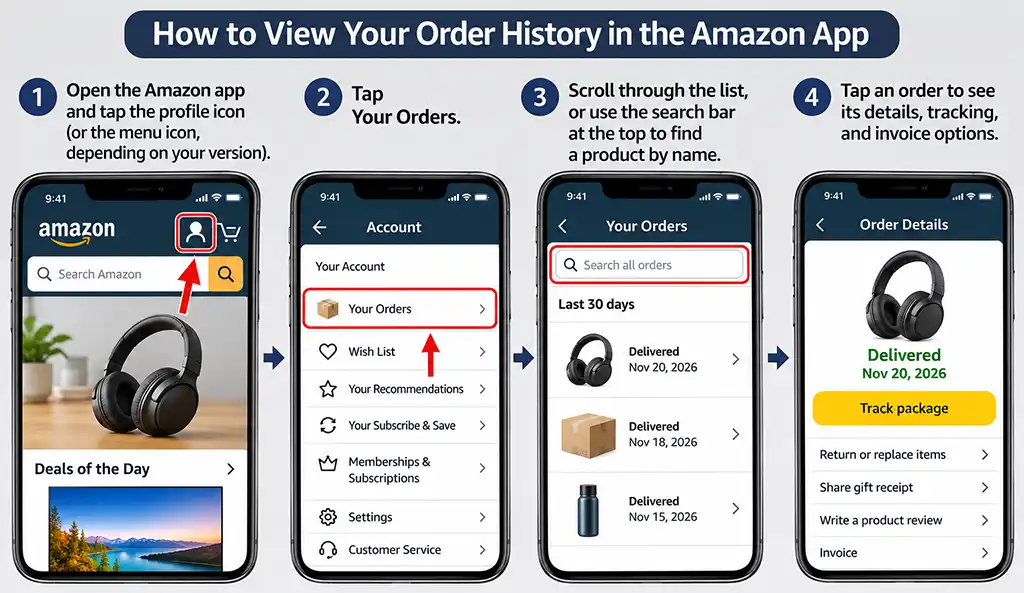
You can also check your purchases directly from the Amazon mobile app.
- Open the Amazon app and tap the profile icon (or the menu icon, depending on your app version).
- Select Your Orders.
- Scroll through your purchases or use the search bar to find a product by name.
- Tap an order to view its details, tracking information, and available invoice options.
The mobile app is convenient for checking recent purchases, while the desktop website is generally more suitable for browsing older orders and downloading your complete purchase history.
How to Find Archived and Old Amazon Orders
If an order is missing from your regular purchase history, it does not necessarily mean that it has been deleted. Amazon provides several places to check when looking for older purchases.
- Archived Orders: Amazon allows you to archive orders to hide them from the main order list. Open the order filter on the Your Orders page and select Archived Orders. Archived purchases remain in your account and can be unarchived.
- Older purchases: Check the date filter and select the specific year you are interested in. The default view may show only recent orders.
- Another Amazon account: Make sure you are signed in to the account used to place the order. If you previously shared an account with someone, check that account as well.
- Another regional Amazon store: Amazon maintains separate order histories for different regional websites, such as amazon.com, amazon.co.uk, and amazon.de. If you made a purchase through another regional store, sign in there to find it.
- Digital purchases: Kindle books, apps, and video purchases are managed separately from regular physical orders. Check the corresponding digital orders or content library sections.
- Local Store Orders: Some purchases, including Whole Foods orders placed through Amazon, appear in a separate Local Store Orders section within your orders.
How to Check the Price You Paid and Get an Amazon Invoice
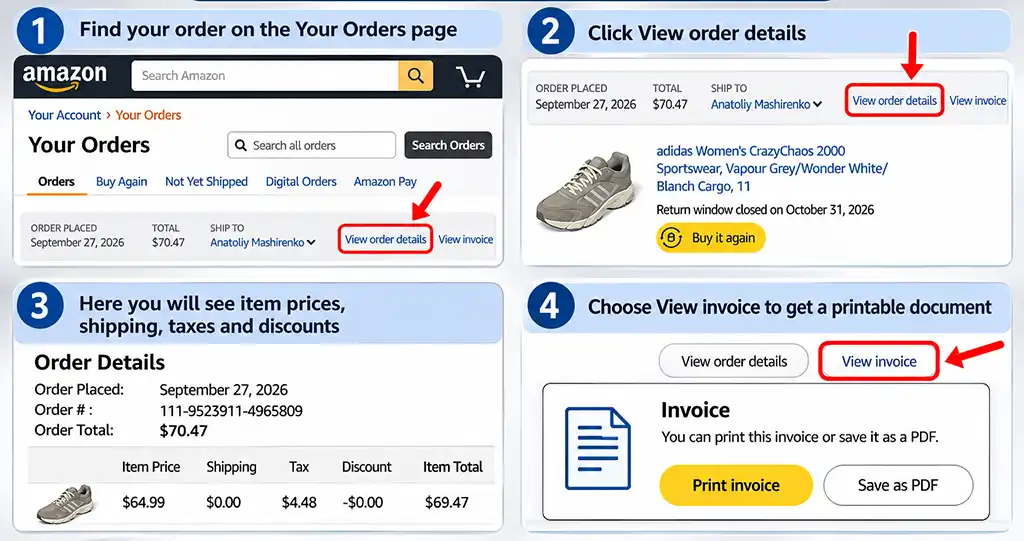
The Your Orders page displays the total amount for each order. To see the price of an individual item and review the other charges, open the order details.
- On the Your Orders page, find the order you want to check.
- Click View order details.
- Review the item prices, shipping charges, taxes, discounts, and payment method.
- To get a printable document, select View invoice (or Invoice) from the same menu. You can then print it or save it as a PDF.
An invoice is useful when you need proof of purchase for a return, warranty claim, or expense report. It also provides a convenient breakdown of the amount charged for an order.
How to Download Your Full Amazon Order History (CSV)
Checking orders individually is time-consuming if you want to review your purchases over several years or calculate your total spending. Amazon provides a way to request your account data and download your order history as an archive containing CSV files.
This option is available through the Amazon website, not the mobile app.
- Open the data request page. Go to the data request page on your regional Amazon website. For the US store, use the Amazon Request Your Data page.
- Choose the data category. Open the drop-down list, select Your Orders, and click Submit Request.
- Confirm your request. Amazon displays a confirmation message and sends an email to the address associated with your account. Open the email and click the confirmation link within five days. The link expires after this period, and you must confirm the request to receive your data.
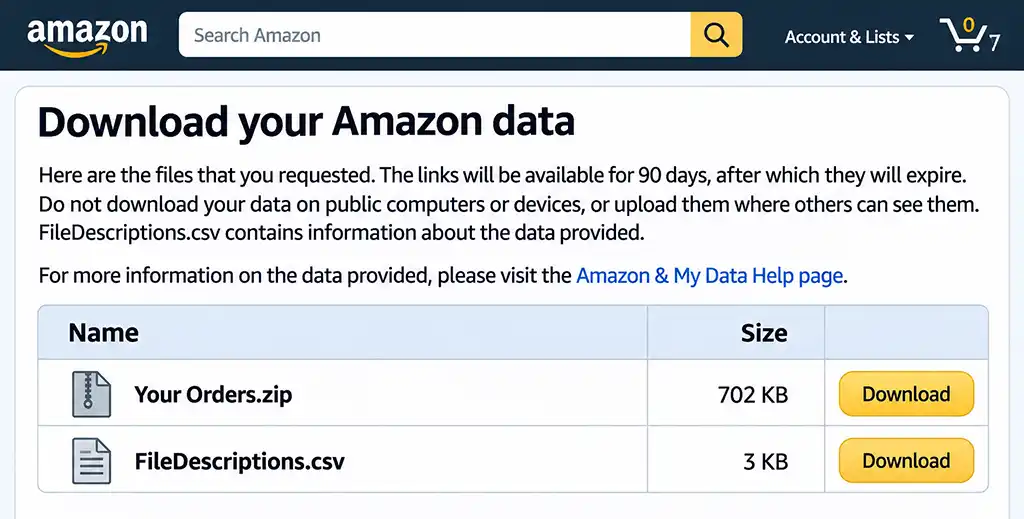
- Download your data. Amazon needs time to prepare the archive. This can take less than an hour or several days. Once the files are ready, Amazon sends another email with a link to the Download your Amazon data page. You will find a file named Your Orders.zip and a FileDescriptions.csv file explaining the contents of the archive. Download links remain active for 90 days. For security, avoid downloading your personal data on public computers or devices, and do not upload the archive to publicly accessible websites or services.
- Extract the archive. Open Your Orders.zip using an archive utility such as Windows File Explorer or another ZIP program. Inside, you will find order data in CSV format, including files such as
Retail.OrderHistory.1.csv.
How to Open and Analyze Your Amazon Order History in Excel or Google Sheets
Once you have downloaded and extracted the archive, you can open the CSV files in a spreadsheet program. This makes it easier to review purchases, calculate spending, and sort orders by date or price.
In most cases, Excel automatically separates the data into columns when you open a CSV file. If all the information appears in a single column, you can split it manually.
In Excel:
- Open a blank workbook and go to Data → From Text/CSV.
- Select your CSV file and click Load.
- If the information still appears in one column, select that column and go to Data → Text to Columns.
- Choose Delimited, click Next, select the appropriate separator (comma, semicolon, or tab), and click Finish.
In Google Sheets:
- Open Google Sheets and go to File → Import → Upload.
- Select your CSV file.
- Choose Replace spreadsheet or insert the data into a new sheet.
- Set the separator type to Detect automatically.
After importing the data, you can use spreadsheet tools to analyze your purchases:
- Calculate total spending: Use the
SUMformula to add up purchase amounts for a selected period. - Filter by date: View purchases from a particular year or month.
- Sort by price: Find your most expensive purchases.
- Create a pivot table: Group purchases by category or seller and compare spending.
This makes it much easier to see how many orders you have placed, identify your largest purchases, and understand how your Amazon spending has changed over time.




[…] How to view archived orders on Amazon […]